
Within this screen, you will find all requests you have submitted.
- Current Request by Type: Shows you visually how many requests the center has submitted per service type.
- Request Status by Month: Shows you visually how many requests the center has submitted per request status.
- Manually add a vehicle: if you have been configured with this option you will see this feature on the manage request tab in the application (see image below)
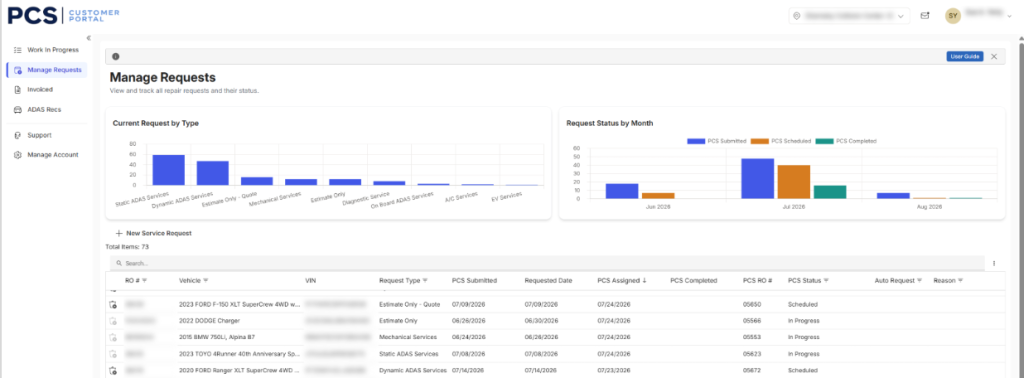
Additional column descriptions:
- PCS Submitted: Date that the center sent the request to Protech.
- Requested Date: Date that the center requested the service to be performed on (Time will be determined when Protech calls to confirm).
- PCS Assigned: Date Protech has scheduled a technician to perform the service on (confirmed date of service).
- PCS Complete: Count of requests that have been completed. Completed means that an invoice has been emailed to the center and can now be accessed within the “Invoiced” tab.
- PCS RO#: This is Protech’s RO number (this is not the Protech Invoice number, invoice is emailed to the center).
- PCS Status:
- Unscheduled means that no technician has been assigned to the request.
- Scheduled means that a technician has been assigned.
- Complete means that the service has been completed.
- Reason: Status note (most are blank as expected)
- Example: Scheduled (PCS Status) may have a Reason (note) = On Hold