The manage account tab also shows the following reporting:
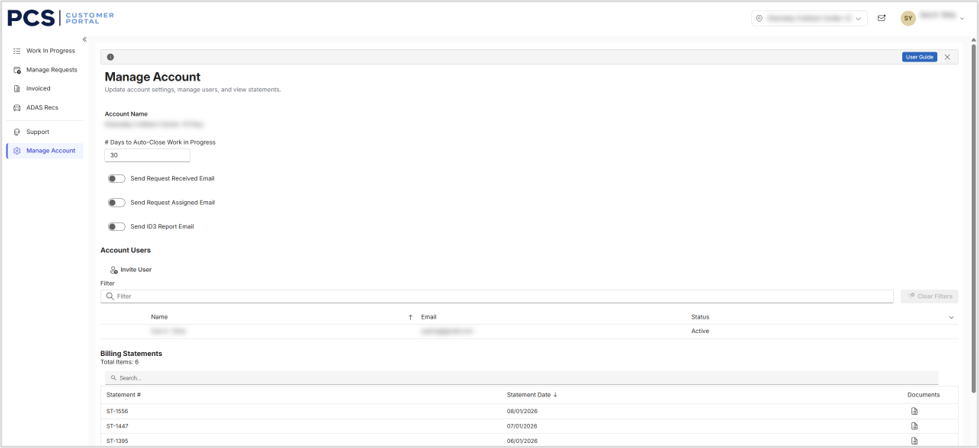
- Shop Settings: Allows admin center user to set specific WIP and communication preferences.
- # Days to Auto-Close Work In Progress: Clears WIP after xx days.
- Send Request Received Email: When a new request is entered, send or do not send an email to the center.
- Send Request Assigned Email: When RO is assigned, send or do not send an email to the center.
- Send ID3 Report Email: Send or do not send the first Why Report PDF via email to the center.
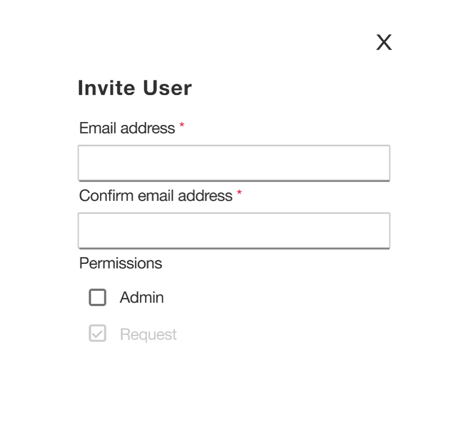
- Invite Users: Allows a customer who is set up as an admin for the account to add users that can request Protech services. Admin users can also be added if needed.
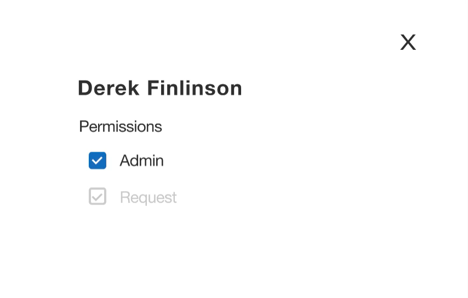
- Email invite to additional user: Allows the admin user to enter in the email address of the person they would like to add as a user. Admin users can make any existing user an admin user if additional support is needed. Clicking “Save” will send an email invite for Protech’s customer application.
- List of all users configured on the account. The icon next to their name indicates the status.
- A person icon indicates a confirmed account.
- A garbage can icon indicates that an invitation has been sent, but the user has not completed their account setup.
Manage Users on your account: Click on the user icon to open a window to update their account settings or remove them from the account. User accounts cannot be edited until setup has been completed.