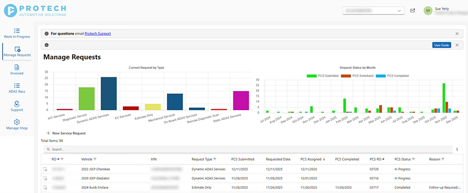
On the Manage Requests screen, click on “+ New Service Request”, located just above the list of requests on the left-hand side of the screen to request a service from Protech. This will provide a pop-up screen to complete your request.
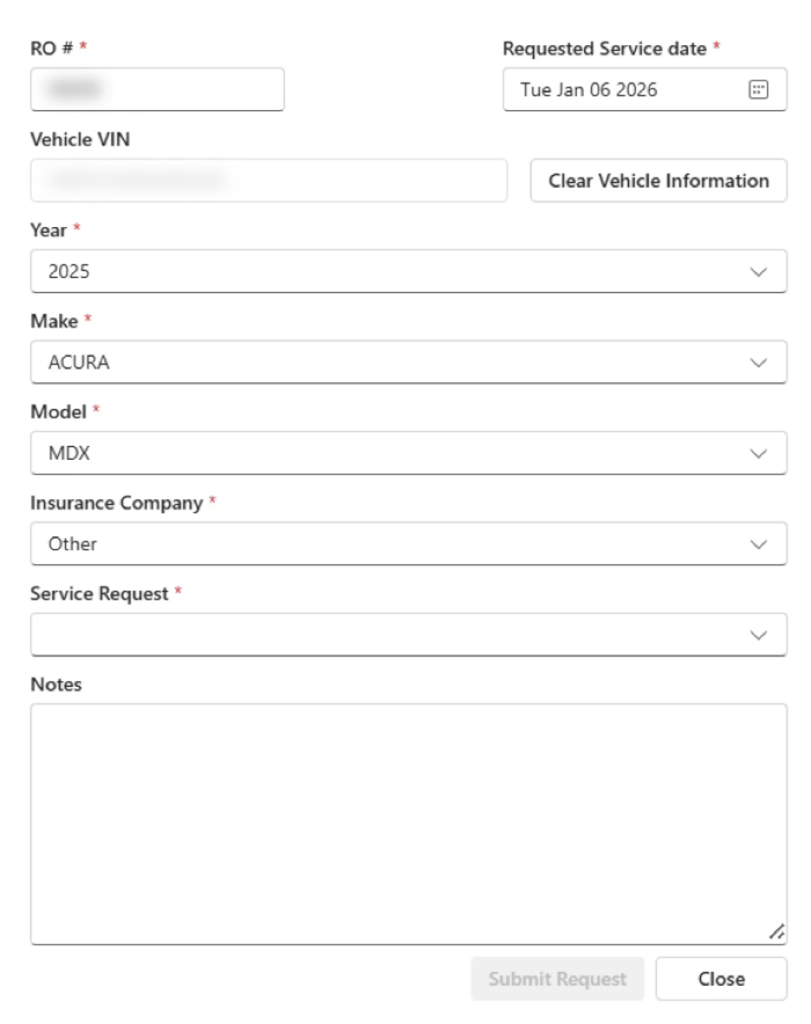
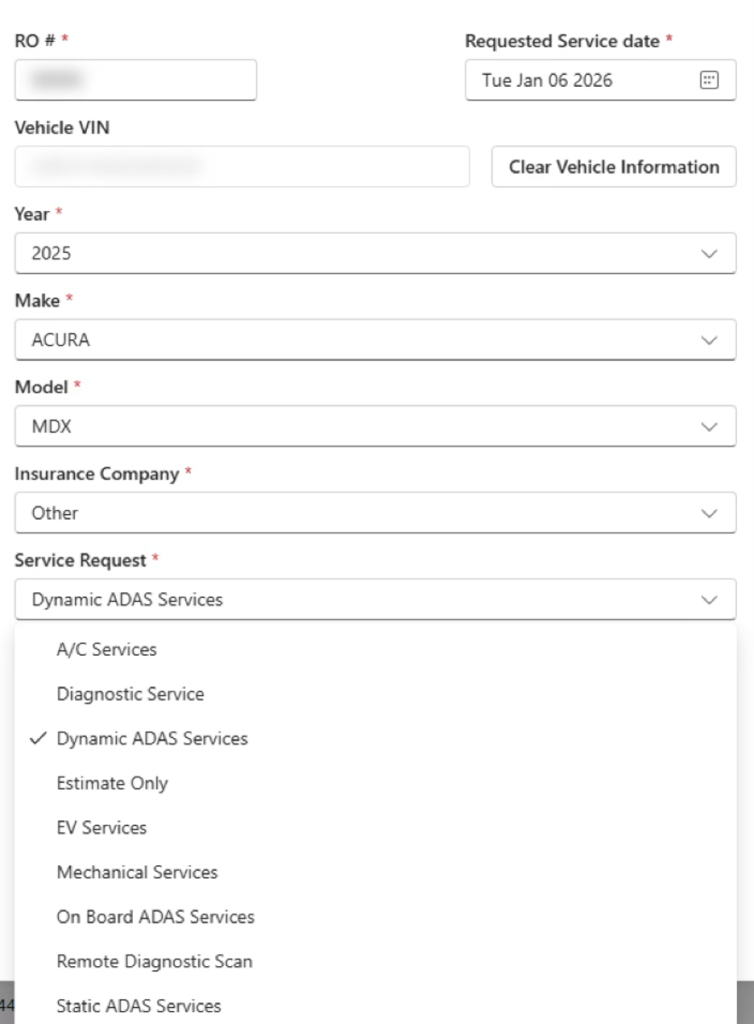
- Enter your internal RO number. This can be letters, numbers, or a combination of the two.
- Requested Service Date is mandatory; click the calendar to update to the preferred service date. (You can request a same-day appointment).
- Protech will call to confirm on the day of service to verify that the vehicle is ready for service. If your preferred requested service date is not available, Protech will review and reschedule on the confirmation call.
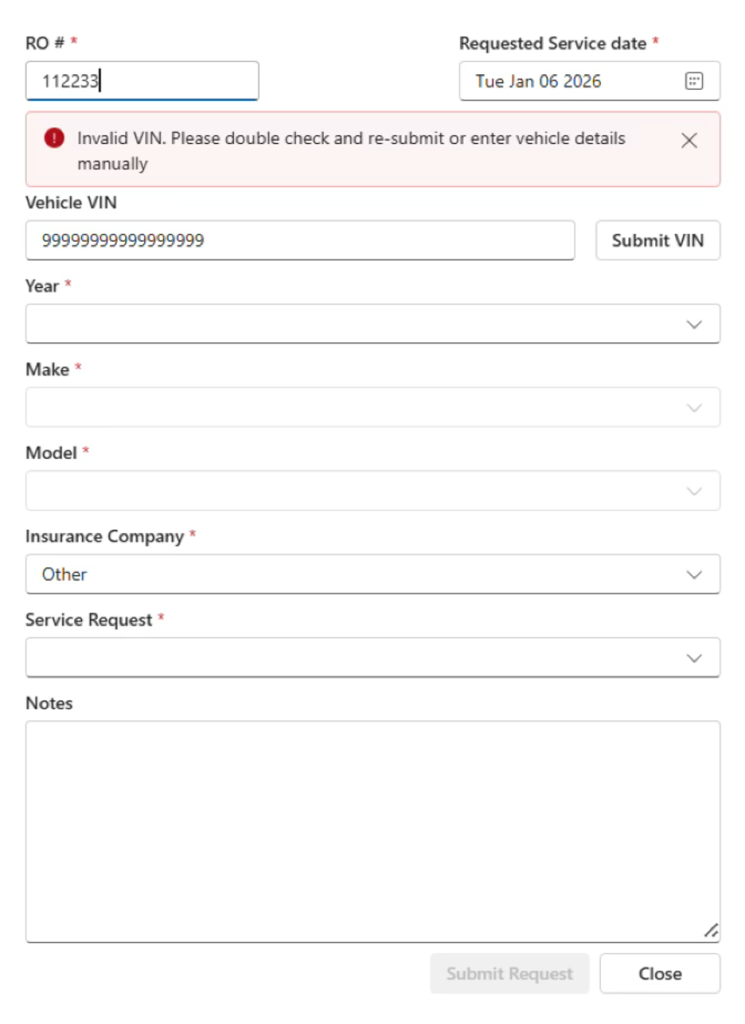
- Enter the Vehicle VIN. If the VIN is valid, the system will decode it and automatically populate the Year, Make, and Model fields.
- If the VIN is not valid, the system will prompt you to select the Year, Make, and Model from drop-downs for each field.
- Insurance defaults to Other – Change as needed.
- Click in the Service Request section to select what type of Protech service you would like performed:
- A/C Services: Request for AC Evacuate or Recharge.
- Diagnostic Service: Request when a more extensive diagnostic service is needed.
- Dynamic ADAS Services: Select this status per the recommendation of the ADAS ID3 tool.
- Estimate Only: This option is used when a quote is needed on a specific service (ex: air bag deployment).
- EV Services: Request any high voltage services including Health Check, High Voltage disconnect or High Voltage component R&I.
- Mechanical Services: Request if you require suspension replacement, alignment, or other mechanical functions.
- On Board ADAS Services: Select this status per the recommendation of the ADAS ID3 tool.
- Remote Diagnostic Scan: Request if you need an OE scan.
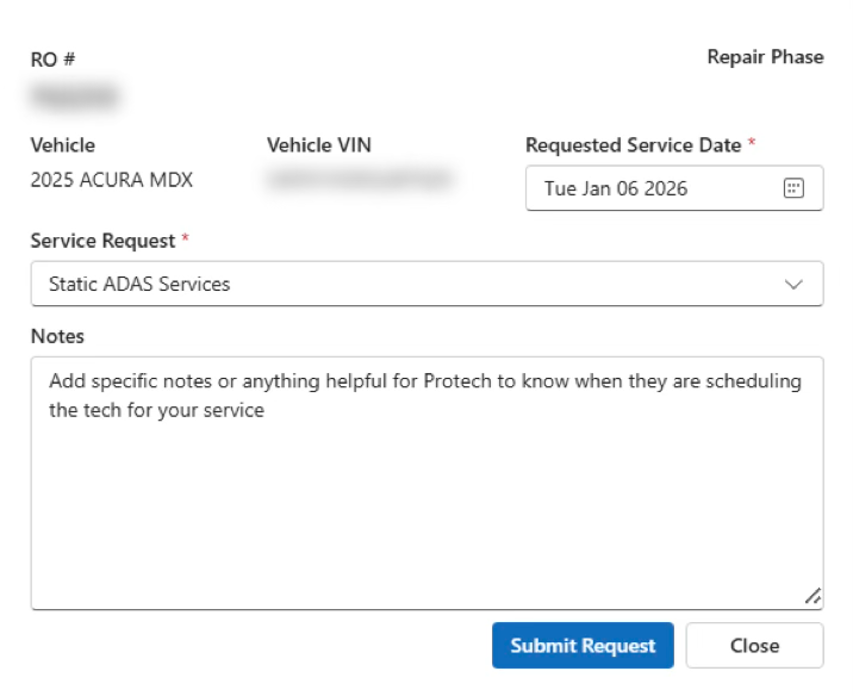
- Static ADAS Services: Select this status per the recommendation of the ADAS ID3 tool.
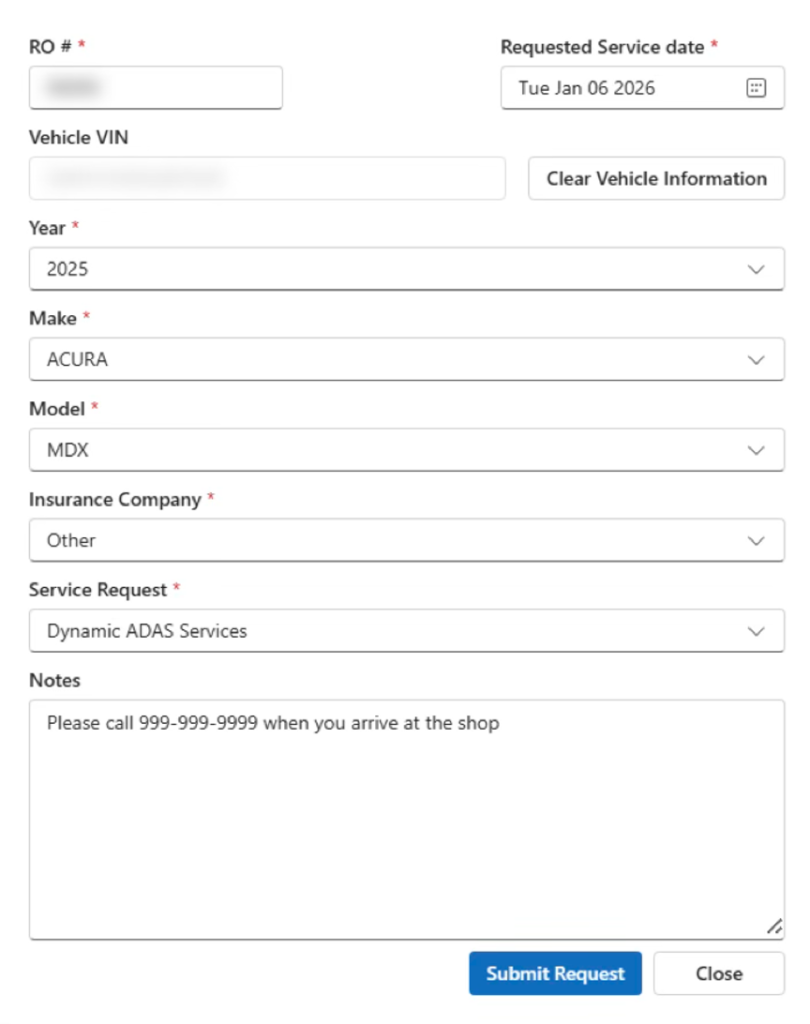
- Add detailed notes that would be relevant when Protech is scheduling the Service Technician.
- Once completed, click “Submit Request”.
8. A WIP will automatically be created for this vehicle. Additional service requests can then be added for this vehicle from the WIP screen by clicking the “+”. When requesting services through the WIP, the vehicle information will automatically be populated and you will only need to select the service type from the drop-down and enter any relevant notes.